How to connect your domain email (cPanel and Plesk) to Gmail
Having a professional email address like contacto@tunegocio.com builds trust and looks much better than a generic @gmail.com. The problem is that your hosting's webmail is usually clunky, and nobody wants to check two inboxes. The good news: you can manage your domain email from the same Gmail account you already use, to receive and send as your brand without leaving the interface you already know.
In this guide we walk you through, step by step and with screenshots of every screen, how to connect your email from cPanel or Plesk to Gmail. You don't need to be technical: if you follow the steps in order, you'll have it working in about 15 minutes.
What does connecting your email to Gmail mean?
Connecting your domain email to Gmail means two things:
Receiving the messages sent to your domain email (contacto@tunegocio.com) in your Gmail inbox.
Send emails from Gmail that show up as coming from your domain, not from your personal account.
That way you get the convenience of Gmail (search, filters, mobile app) with the professional look of your branded email. All from a single inbox.
Before you start: what you need
Gather the following before you begin:
A domain with hosting that uses cPanel or Plesk (most providers use one of the two).
Access to the control panel of your hosting (cPanel or Plesk).
A Gmail account (personal or Google Workspace).
The email password for the account you're going to use (or you'll create one in the first step).
With that ready, let's get to the steps.
Step 1: Create your email account on the hosting
First, the email address needs to exist on your server. This is where cPanel or Plesk comes in, depending on which one your hosting uses.
If you use cPanel
Log in to cPanel (usually at tudominio.com:2083) and look for Email Accounts, under the Email section. Click Create and fill out the form:
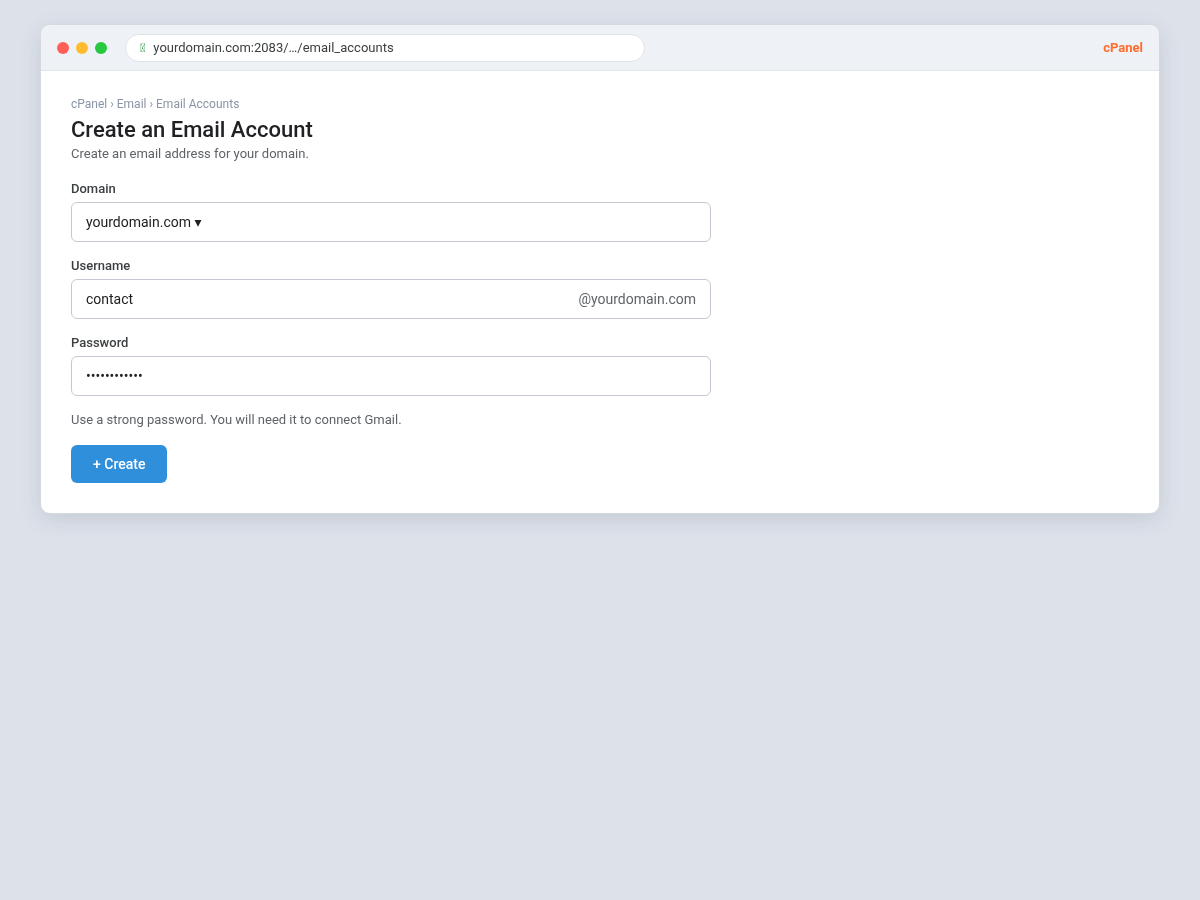
Domain: choose your domain.
Username: what goes before the @ (for example, “contacto”).
Password: make it a strong one and write it down, because you'll use it to connect Gmail.
Click Create and your mailbox is ready.
If you use Plesk
Log in to Plesk (usually at tudominio.com:8443), go to the Email section and click Create Email Address. Fill in the address and password, then click OK.
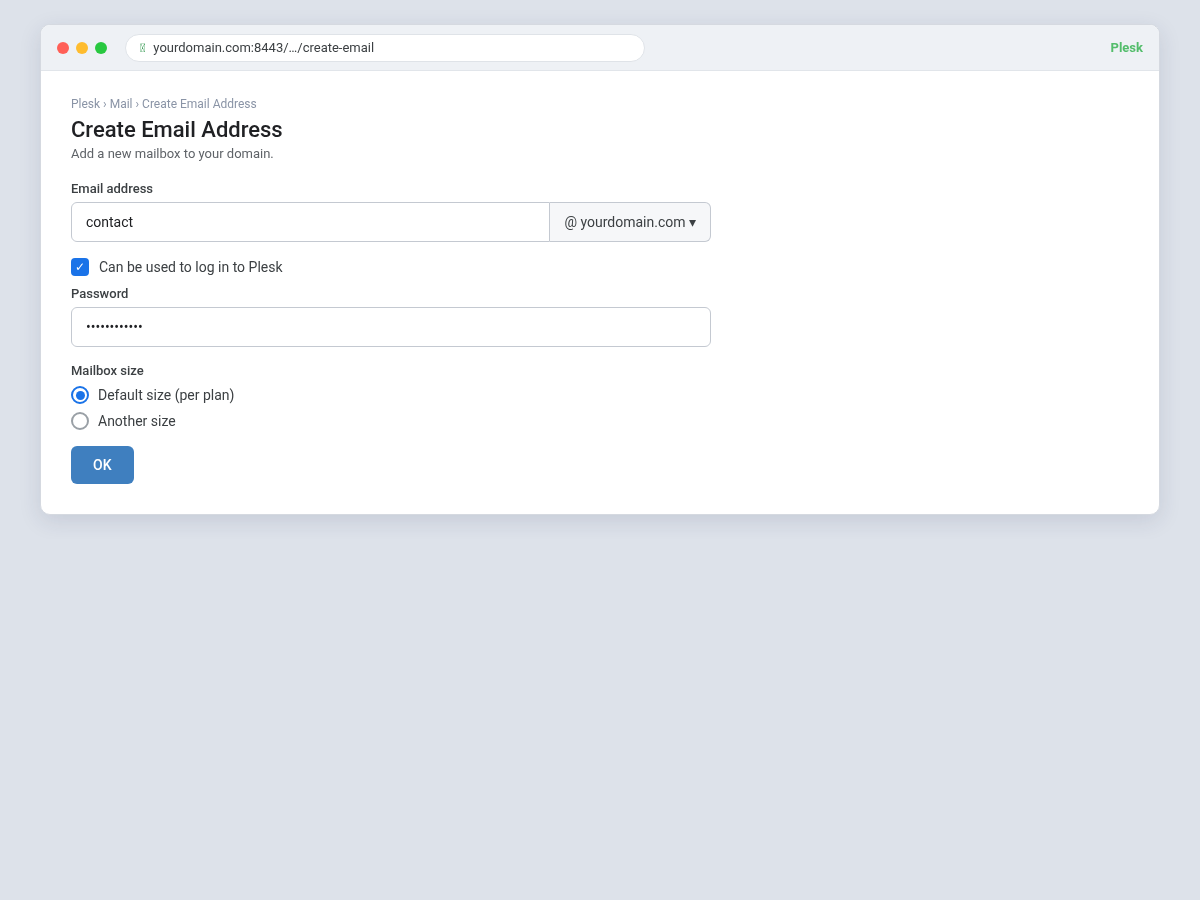
The result is the same as in cPanel: an email account ready on your server. The only difference between the two panels is the interface; the email works the same way.
Step 2: Write down your mail server details
For Gmail to connect to your email, it needs to know which server to point to and which ports to use. You'll find these details in the same panel.
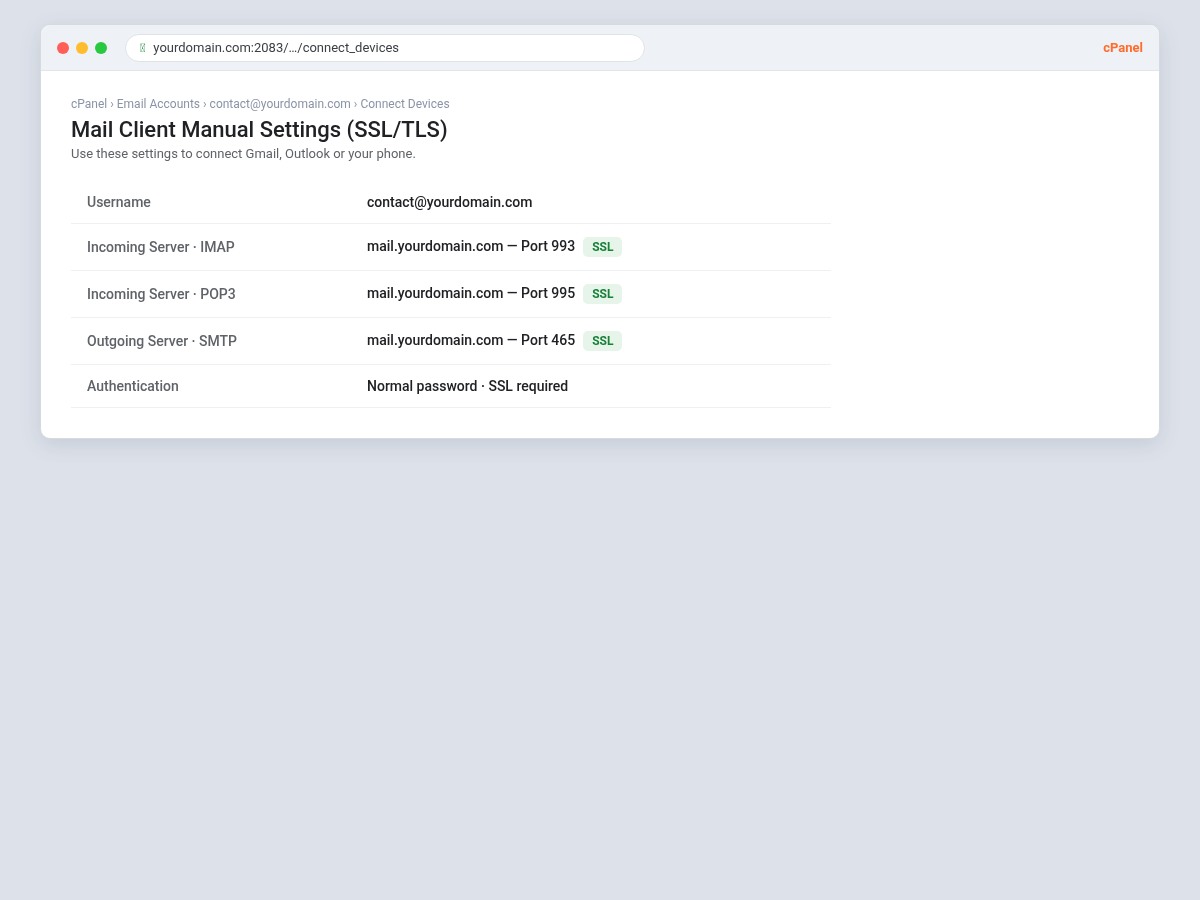
In cPanel, open your email account and look for Connect Devices (or “Set Up Mail Client”). You'll see a table with the secure settings (SSL/TLS):
In Plesk, the information is equivalent and you'll find it in the email account settings:
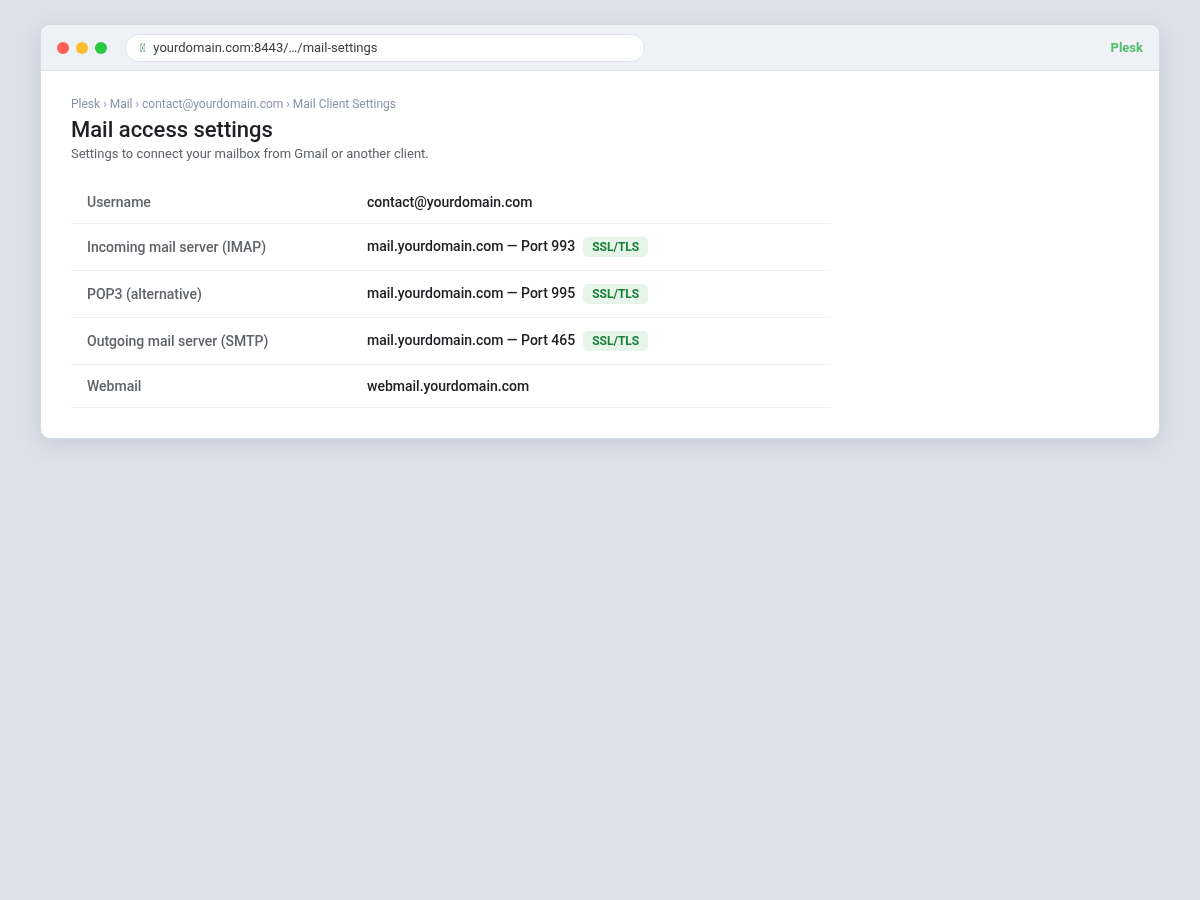
Here's what you need to write down (replace “tudominio.com” with your own):
Server: usually mail.tudominio.com (used for both incoming and outgoing).
Incoming (receive): IMAP port 993, or POP3 port 995. Both with SSL.
Outgoing (send): SMTP port 465 with SSL (sometimes 587 with TLS).
Username: your full address (contacto@tudominio.com).
Password: the one you set when you created the account.
With these details on hand, let's move on to Gmail.
Step 3: Receive your domain email in Gmail (POP3)
Now let's get Gmail to pull the messages sent to your domain email into your inbox.
In Gmail, go to Settings (the gear icon, “See all settings”) and open the Accounts and Importtab. In the Check mail from other accountssection, click Add a mail account. Enter your domain address and, on the next screen, fill in the settings:
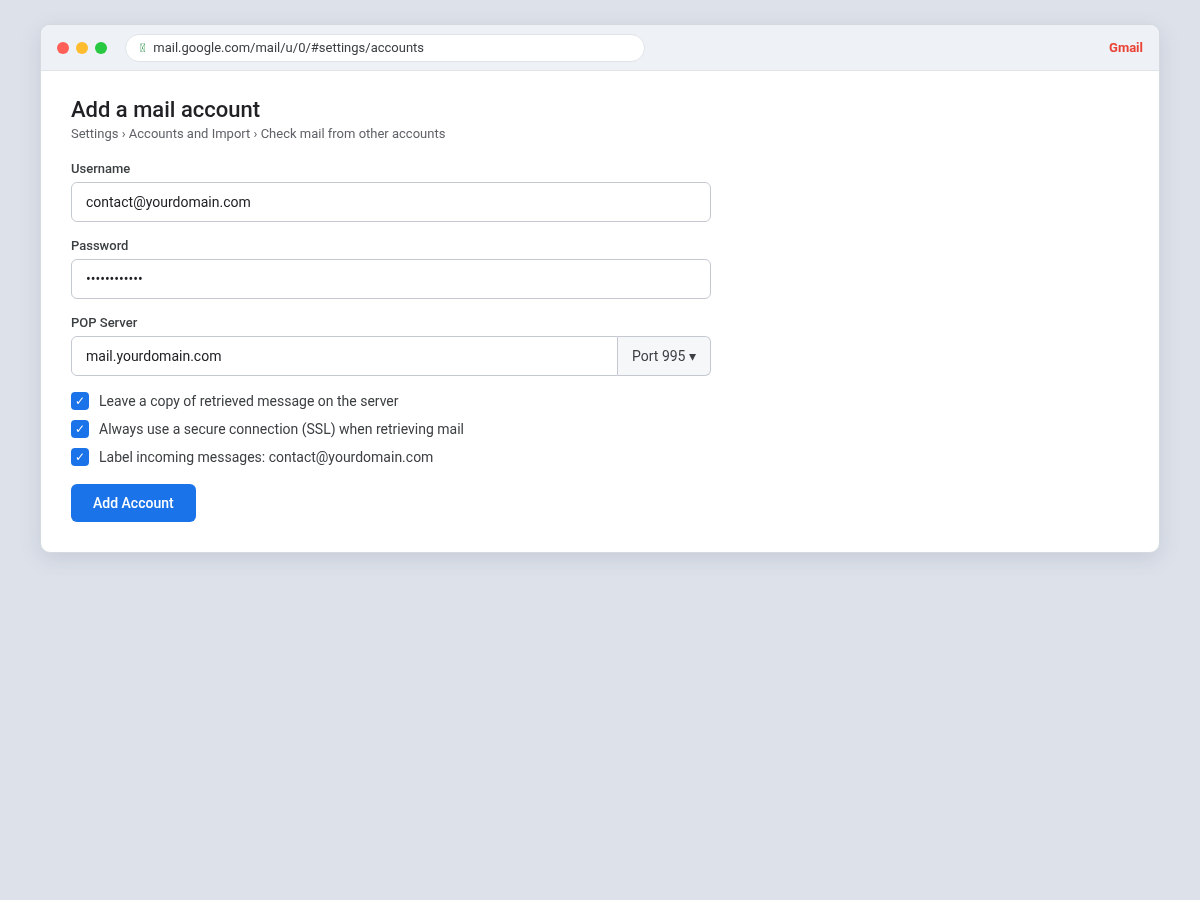
The details:
Username: your full address (contacto@tudominio.com).
Password: your email password.
POP Server: mail.tudominio.com.
Port: 995, and check Always use a secure connection (SSL).
We also recommend checking Label incoming messages, so you can tell in your inbox what arrives at your domain email. Click Add Account and Gmail will start pulling in your messages.
Step 4: Send email as your domain (SMTP)
Receiving is done; now you need to be able to reply and write as your branded email. When you finish the previous step, Gmail asks whether you also want to send as that address. Say yes (or go to Accounts and Import › Send mail as › Add another email address).
After confirming your name and address, Gmail will ask for the outgoing server (SMTP) details:
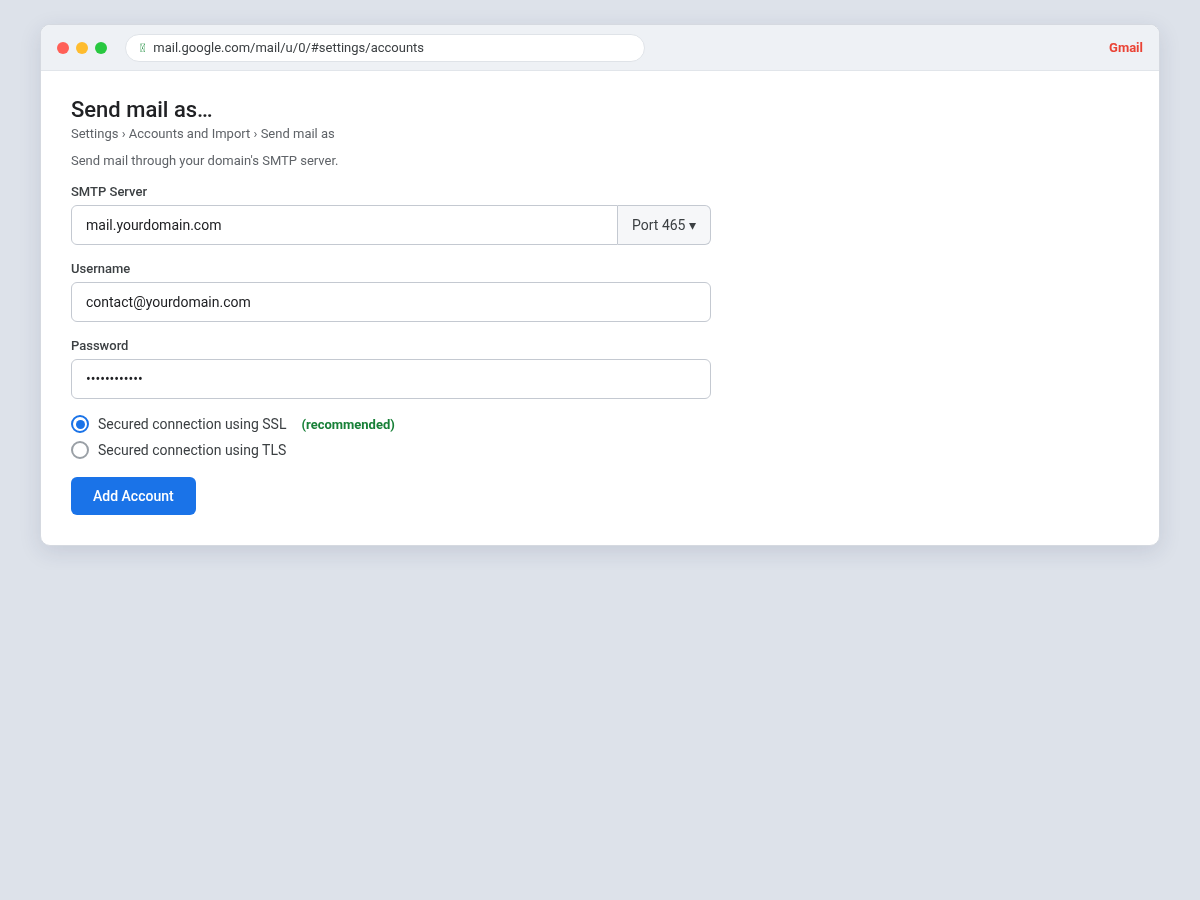
The details:
SMTP Server: mail.tudominio.com.
Port: 465 with a secure connection SSL (if it fails, try 587 with TLS).
Username: your full address.
Password: your email password.
Click Add Account. Google will send a verification code to that address (which you already receive in Gmail from step 3) to confirm the account is yours. Paste it in and you're done.
Step 5: Check that everything works
Before you celebrate, run a quick test:
Send a test email from another account to your domain address and confirm it arrives in your Gmail.
Reply from Gmail and, as you do, check that you can pick your domain address in the “From” field.
Check the sender: ask a contact to confirm the email came from contacto@tudominio.com and not from your personal Gmail.
If all three work, your professional email is now set up in Gmail.
Common problems (and how to fix them)
If something won't connect, it's almost always one of these:
Authentication error. Check that the username is the full address (with @tudominio.com) and not just “contacto”. It's the most common mistake.
SSL or connection error. Make sure you're using the right server (mail.tudominio.com) and the secure ports (995 to receive, 465 to send). If 465 fails, try 587 with TLS.
Wrong password. Use the password for the mailbox, not the one for logging in to cPanel/Plesk or your Gmail.
Blocked port. Some networks block email ports. Try from another connection or check with your hosting provider.
The domain is new. If you just created the domain or the email account, wait a few hours for the settings to propagate.
What if I use Google Workspace?
Everything above works for connecting your domain email to a regular (free) Gmail account. If you want a more complete, professional setup (domain email native to Google, with full IMAP and shared Calendar and Drive), the option is Google Workspace, Google's paid service for businesses. There, your domain email lives directly on Google's infrastructure, without depending on your hosting. For many businesses, starting by connecting the hosting email to Gmail is enough; over time, some move to Workspace. If your domain already uses Workspace and your website's forms stop arriving, that's usually the cause: we cover it in how we fixed WordPress outgoing mail.
Frequently asked questions
Can I use my domain email on my phone?
Yes. Once it's connected to Gmail, you also have it in the Gmail app on your phone, with nothing else to set up.
Is POP3 or IMAP better?
To connect to a free Gmail account you use POP3 (that's how the “Check mail from other accounts” option works). IMAP keeps everything synced in real time and is the standard in clients like Outlook or in Google Workspace.
Will my emails be deleted from the server?
With POP3 you can choose “leave a copy on the server” (recommended) so you don't lose anything if something goes wrong.
Which is better, cPanel or Plesk?
For this, neither is better: the process is the same and only the interface changes. Your hosting provider decides which one you use. That said, the hosting you choose is also what weighs most in the your website's speed.
Do I need technical help to do this?
Not for the basics; by following this guide you can do it yourself. If something gets complicated or you manage several email accounts, it's worth getting help from a professional.
Conclusion
Connecting your domain email (from cPanel or Plesk) to Gmail gives you the best of both worlds: your brand's professional image and the convenience of a single inbox you already know. The process is simple: you create the account on the hosting, write down the server details, and in Gmail you set up receiving (POP3) and sending (SMTP). In just a few minutes, your business is communicating from contacto@tunegocio.com, hassle-free.
In Lucuma Agency we take care of your website and the technical side so you can focus on your business. If you're deciding what to build your website with, our guides on why to build it in WordPress and of WordPress.com vs WordPress.org vs custom code. If you need a professional website (with its domain email properly set up), or want us to help with your online presence, book your free 30-minute consultation. Serious about results, close in how we work with you.
Other posts you might like
At almost every real estate developer we work with, the lead takes the same absurd trip: it comes in through the form...
Switching servers is scary for a sensible reason: you rarely do it, and when it goes wrong, it goes wrong in public....
The question always comes the same way: “which payment gateway do you recommend?” And the useful answer doesn't start with a name, because the...
There's a moment, in quite a few projects, when the search for the right plugin becomes the problem. You tried three,...
Almost every online complaints book we audit complies on the outside and fails on the inside. They have the notice,...
The message came in like this: “the complaints book is throwing an error.” The Proba Inmobiliaria website, a page required by law,...
“Top 50 plugins” lists don't help you decide. They help you install fifty plugins. This is ours,...
Almost every business we ask has backups. Almost none has ever restored one. Those two sentences together are...
Almost every hosting conversation starts with price and ends up in the wrong place. The useful question is...
When a business wants to sell outside its country, the conversation almost always starts off wrong: with translation. And the...
Structured data is the piece of code that explains to Google, in a language that leaves no room for interpretation,...
The question comes up in almost every meeting: “if I use AI to write, will Google penalize me?” The short answer...