How we cut a WooCommerce store's cart from 8 to 1.5 seconds
Vaporis sells home diffusers and fragrances in Lima. Its store is built on WordPress with WooCommerce and Bricks, and in July 2026 it had a problem any e-commerce owner will recognize: after clicking “add to cart”, the page sat there thinking for about 8 seconds. Eight seconds in which the customer hesitates, reloads, or leaves. This is the record of how we diagnosed it and the five layers we had to work on to bring it down to 1.5 seconds, along with what we learned for the next store.
Measure first, because our hunch was wrong
The initial hunch made sense: the store has a custom plugin that adds an included scent to each box and filters variations, so “it must be the plugin”. Before touching anything, we measured it with Query Monitor, a free tool that breaks down how long WordPress takes to generate each page.
The results took that theory apart. The database responded in 0.36 seconds. External calls: zero. The time was going to pure PHP: everything WooCommerce, the page builder and a dozen plugins load on every request before rendering anything. The custom plugin barely registered. If we had started by optimizing it, we would have lost a week to gain a few tenths of a second.
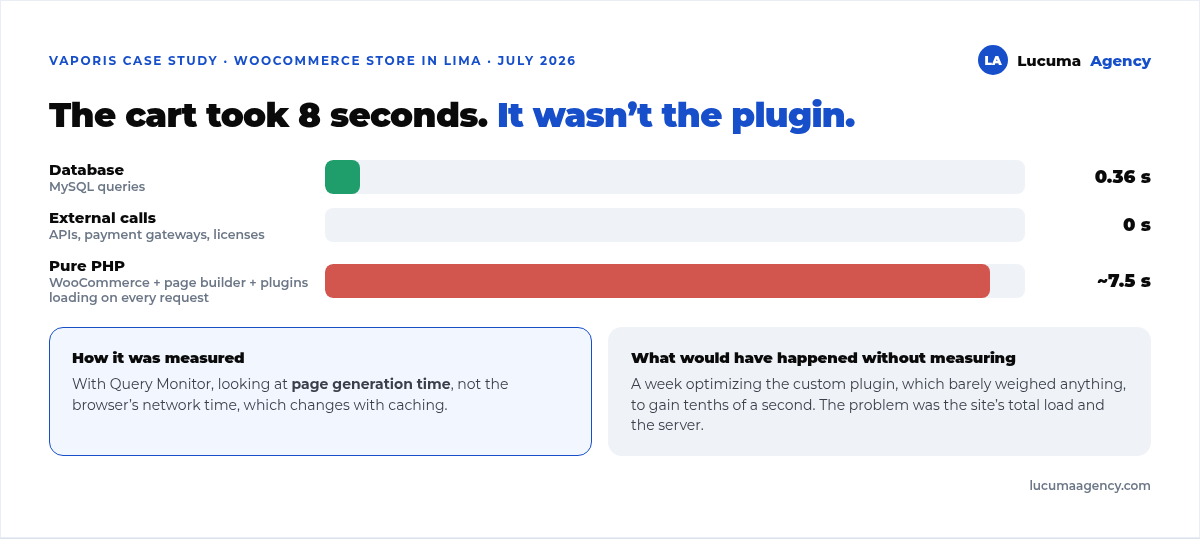
Two measurement rules that apply to any store: look at Query Monitor's “page generation time”, not the browser's network time, which changes with caching. And measure both as an administrator and in an incognito window, because caching plugins don't kick in for logged-in users, and what you see as an admin isn't what your customer sees.
The five layers, in order of impact
There wasn't a single cause. There were five, and each one shaved off part of the time. We applied them in this order:
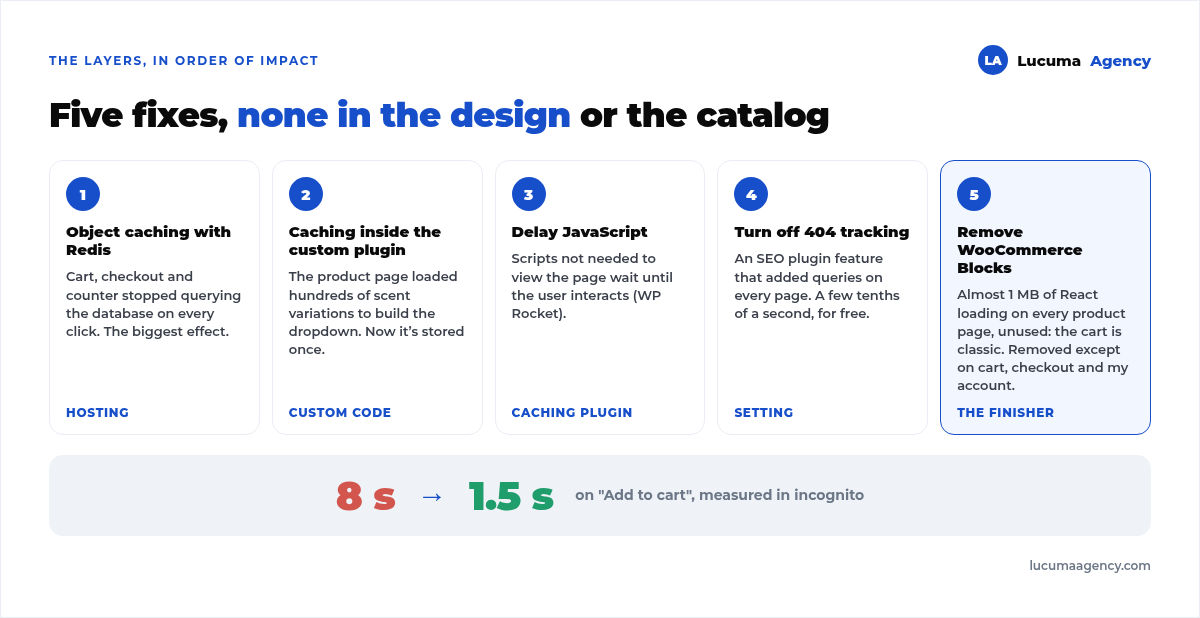
- 1. Object caching with Redis. The dynamic pages (cart, checkout and the fragments that update the cart counter) were querying the database again on every click. With Redis, those repeated queries are served from memory. This is done on the hosting, not in WordPress, and it was the change with the biggest effect.
- 2. Caching inside our own plugin. Each box's product page loaded hundreds of scent variations to build its dropdown. We stored that map once and reused it. Here we did touch our own code, but because the measurements pointed to it, not on a hunch.
- 3. Delaying JavaScript execution. With WP Rocket, scripts that aren't needed to view the page stopped blocking the load until the user interacts.
- 4. Turning off the SEO plugin's 404 error tracking. A useful feature that, when enabled on a store with lots of URLs, added queries to every page. Only a few tenths of a second, but free.
- 5. Removing the WooCommerce Blocks bundle. The finishing touch. WooCommerce loads a React bundle of almost 1 MB designed for carts built with blocks. This store uses a classic cart and checkout built in Bricks, so that megabyte was being downloaded on every product page for nothing. We removed it from every page except cart, checkout and my account. From about 4 seconds to 1.5.
Step 5 comes with a warning: don't apply it blindly. If your store uses any WooCommerce block, for example the mini cart in the header, those scripts are needed and removing them breaks checkout. You have to check store by store and test the full purchase flow afterward.
What didn't work or went sideways
- Clearing the entire cache in production triggered a 502 error a couple of times: the cold start of such a heavy WordPress site exceeds the server's timeout. It recovers on reload, but we learned not to clear the cache unless we need to.
- An earlier patch that disabled cart fragments gained speed at the cost of losing the live counter. With Redis it was no longer needed, so we turned it off.
- One lever went unused: upgrading the PHP version and enabling OPcache. That's the hosting's job, and it's on the list for the next round.
What you can check in your store today
You don't need to be technical to run the first diagnosis:
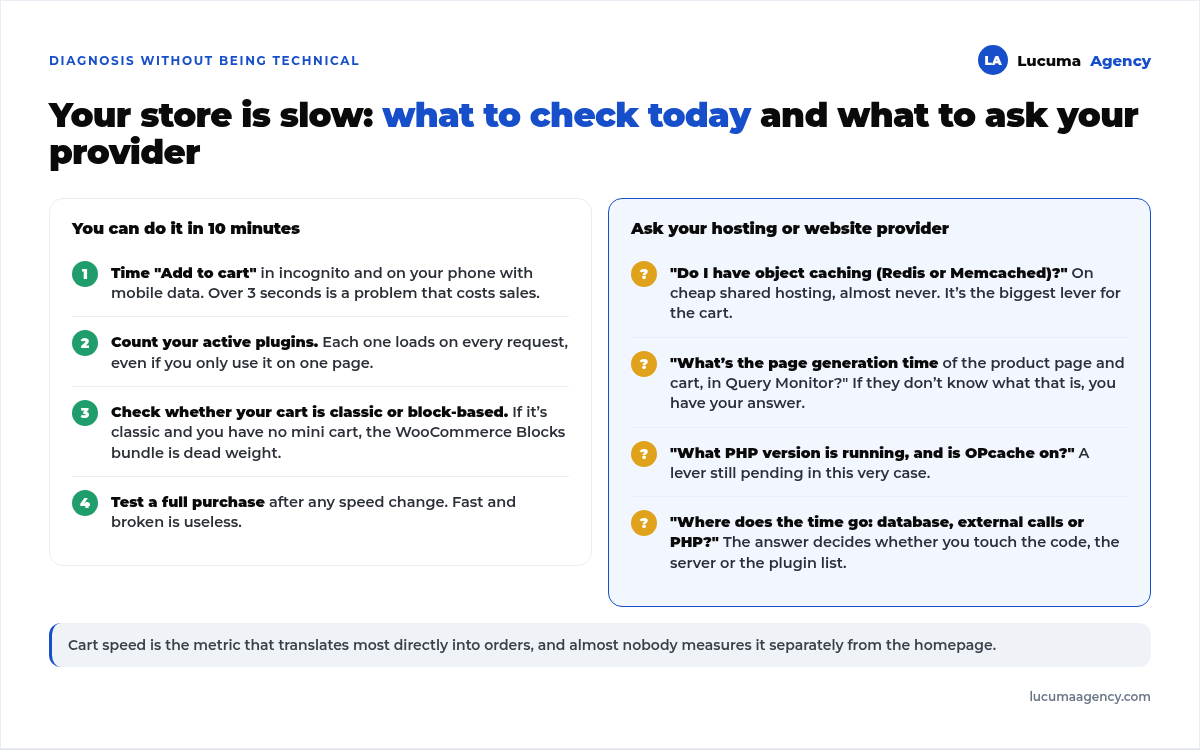
- Time the buy button in an incognito window and on your phone using mobile data. If it takes more than 3 seconds, you have a problem that's costing you sales.
- Ask your hosting provider whether you have object caching (Redis or Memcached). Cheap shared hosting almost never does, and it's the biggest lever.
- Count your active plugins. Each one loads on every request, even if you only use it on one page.
- Ask your provider for the page generation time of the product page and the cart, measured with Query Monitor. If they don't know what that is, you already have your answer.
- If your cart and checkout are classic, ask whether the WooCommerce Blocks bundle is loading across the whole store.
For the rest of the website, not just the store, how to speed up your WordPress website covers images, hosting and Core Web Vitals. And if the slowness comes with other symptoms, the 15-point checklist tells you whether the problem is a one-off or structural.
What changes for the business
Vaporis didn't win a pretty PageSpeed score. It won a customer who has already decided to buy no longer getting 8 seconds to change their mind. In a store, cart speed is the metric that translates most directly into orders, far more than homepage speed, and almost nobody measures it separately. If you're going to ask whoever maintains your store for just one thing, ask for that. And if what worries you is getting paid, choosing the right payment gateway matters as much as speed: we explain it in WooCommerce with Yape and Plin.
Frequently asked questions
Why is my WooCommerce store slow if I have only a few products?
Because speed rarely depends on the catalog. It depends on how many plugins and scripts load on every request, whether there's object caching, and how the hosting responds. A 30-product store on an overloaded server runs slower than a well-configured one with 3,000.
Does a caching plugin fix the problem?
It helps with static pages, but the cart and checkout are dynamic and can't be cached like a regular page. For that you need server-side object caching, which is a different thing.
What is WooCommerce Blocks and why is it so heavy?
It's the cart and checkout version built with WordPress editor blocks, made in React. If your store uses it, you need it. If it uses the classic cart, that nearly 1 MB bundle loads for no reason. That same analysis led us to write two custom plugins for the store; when that's worth it is covered in how to build a custom WordPress plugin.
How do I know if the slow part is my plugin or my hosting?
With Query Monitor, by looking at how long the database takes, how long external calls take and how long PHP takes. If the database is fine and the time goes to PHP, the problem is the site's total load and the server, not one specific plugin.
How much does it cost to fix a slow store?
It depends on where the bottleneck is. In this case it took a few hours of diagnosis and tweaks, plus enabling Redis on the hosting. What gets expensive is blindly optimizing something that isn't the problem. Once the store is fast, the next step is getting it found: in SEO for an online store we explain how we picked 29 keywords out of 474.
Conclusion
A slow WooCommerce store almost never has a single cause, and it's almost never the one you suspect. At Vaporis it was five layers, from server caching to a megabyte of code that loaded without being used, and the cart went from 8 to 1.5 seconds without changing the design or the catalog. The lesson: measure before you touch anything.
This kind of diagnosis is part of how we work: the full picture is in our digital marketing services. And if you're still deciding what to build your store on, we explain the criteria in why we build websites on WordPress.
At Lucuma Agency we build and maintain WooCommerce online stores with cart speed as part of the job, not as an extra. If yours is slow, book a free consultation and we'll measure it together in 30 minutes.
Other posts you might like
At almost every real estate developer we work with, the lead takes the same absurd trip: it comes in through the form...
Switching servers is scary for a sensible reason: you rarely do it, and when it goes wrong, it goes wrong in public....
The question always comes the same way: “which payment gateway do you recommend?” And the useful answer doesn't start with a name, because the...
There's a moment, in quite a few projects, when the search for the right plugin becomes the problem. You tried three,...
Almost every online complaints book we audit complies on the outside and fails on the inside. They have the notice,...
The message came in like this: “the complaints book is throwing an error.” The Proba Inmobiliaria website, a page required by law,...
“Top 50 plugins” lists don't help you decide. They help you install fifty plugins. This is ours,...
Almost every business we ask has backups. Almost none has ever restored one. Those two sentences together are...
Almost every hosting conversation starts with price and ends up in the wrong place. The useful question is...
When a business wants to sell outside its country, the conversation almost always starts off wrong: with translation. And the...
Structured data is the piece of code that explains to Google, in a language that leaves no room for interpretation,...
The question comes up in almost every meeting: “if I use AI to write, will Google penalize me?” The short answer...