WordPress security: how to protect your website from hacks
A distributor in Lima found out its website had been hacked when a customer called: searching for them on Google brought up a red “dangerous site” warning. Nobody had targeted them on purpose. A bot found a plugin that hadn't been updated in over a year, got in and used the server to inject spam pages. Recovering the website took three days; regaining Google's trust took several weeks.
“WordPress is insecure” is one of the most repeated and most false myths out there. WordPress is secure; what fails are neglected or poorly configured websites. Here we explain how attacks get in, the seven measures that actually work and what to do if it already happened to you.
It's part of our guide why build your website on WordPress.
Why websites get hacked (and it's not because of WordPress)
Almost every compromised website has something in common: it was outdated or poorly maintained. And there's a second point that changes how you think about the problem: nobody chose your business. Attacks on small websites are almost never targeted: they're bots crawling the internet looking for known vulnerable versions. They don't know whether you're a clinic in Arequipa or a hardware store in Trujillo; they just check whether the door is open.
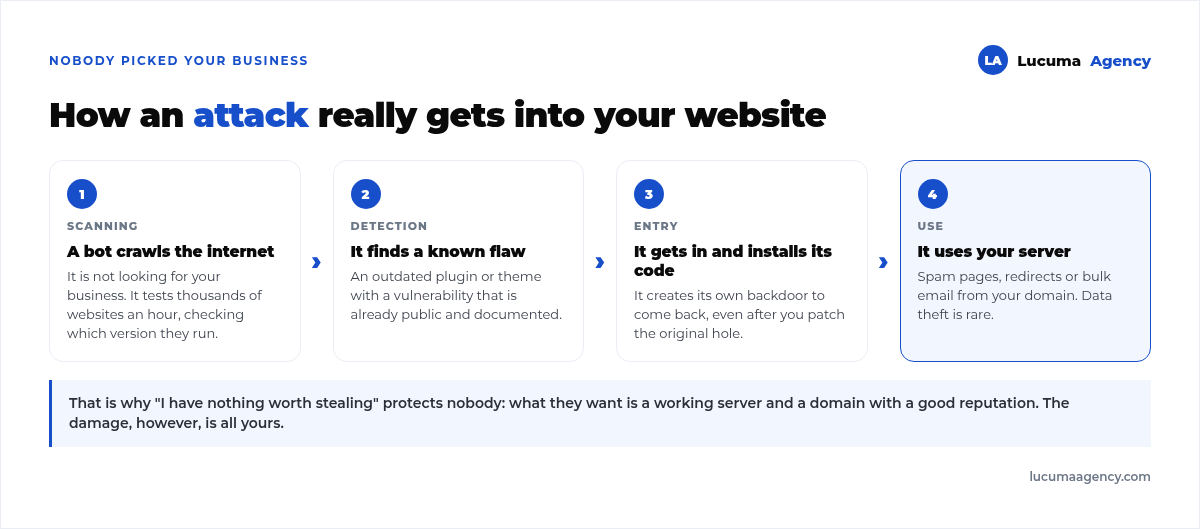
And it often comes as a surprise that in most cases they aren't trying to steal anything from you: they want your server. A hacked website is used to inject spam pages, redirect your visitors to another site or send mass email from your domain. That's why “I have nothing worth stealing” protects no one: the value lies in the fact that your website works and your domain has a reputation.
The damage, on the other hand, is all yours. Google flags the site as dangerous and pulls it from the results, your domain lands on email blacklists, and the SEO work you built over months collapses overnight.
The seven measures that actually protect you
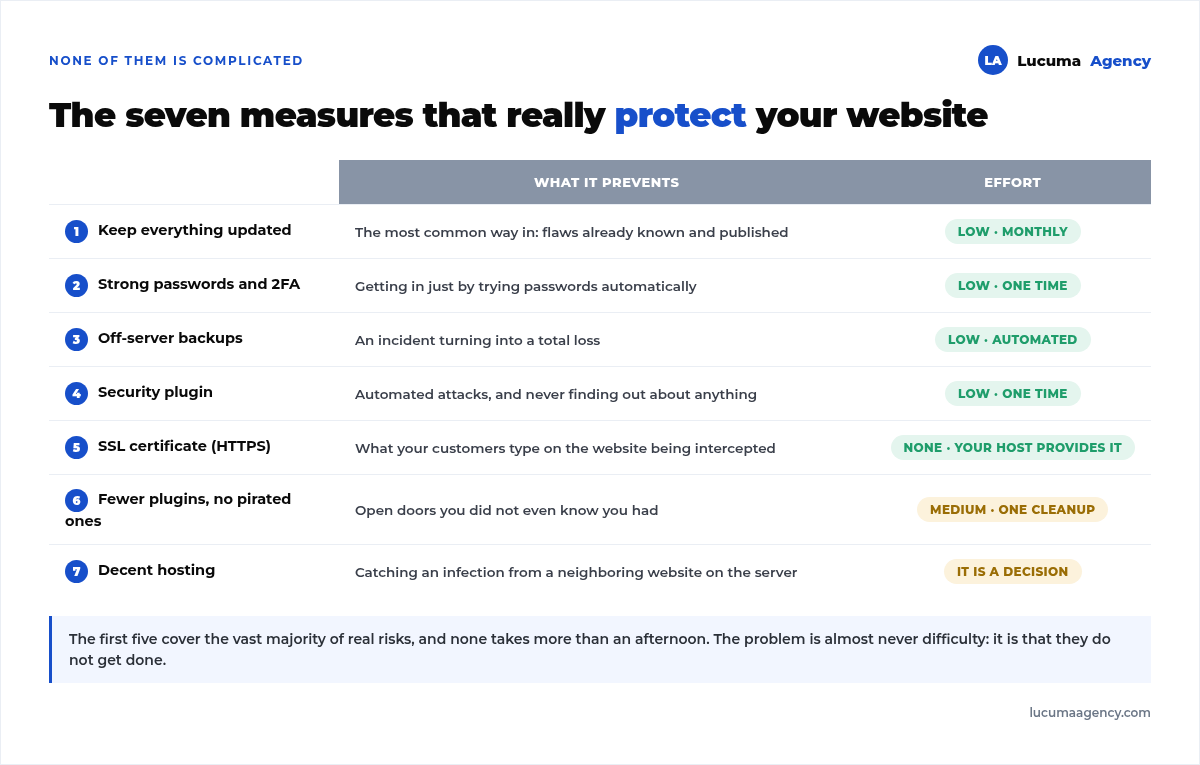
1. Keep everything updated
It's the most important one and the most neglected. WordPress, the theme and the plugins receive updates that fix flaws that have already been made public, and that's the point: once a vulnerability goes public, bots start looking for it within days. An up-to-date website closes most doors before anyone touches them. Two rules: back up before updating and check the website afterward. Where to store that backup and how to make sure it works is covered in WordPress backups.
2. Strong passwords and tidy user accounts
Many break-ins happen by trying passwords automatically, one after another:
Long, unique passwords. A long phrase is more secure and easier to remember than eight random characters.
No “admin” username. It's the first name they try.
Two-factor authentication (2FA). It adds the most protection for the effort it takes.
Give each person only the permissions they need, and remove anyone who no longer works with you: forgotten accounts from former vendors are a very common open door.
3. Make backups
A great backup is your safety net: you restore in minutes instead of rebuilding from scratch. Three conditions: it has to be automatic, because a backup that depends on someone remembering doesn't exist; it has to be stored off the server, because if the server gets infected it takes the backups down with it; and you have to test it at least once, because if a backup has never been restored, you don't know whether it works.
The hard part of backups isn't setting them up, it's remembering to check that they can be restored. If you don't want to keep track of it, delegate it: that's what a plan of website maintenance.
4. Use a security plugin
It adds a firewall, blocks repeated login attempts and alerts you to strange changes. It works around the clock and, above all, it keeps you informed of what's happening. That said, it doesn't replace the basics: on an outdated website with weak passwords, it's an alarm in a house with the door left open.
5. SSL certificate (HTTPS)
The padlock in the browser encrypts the information between your website and whoever visits it. It's essential for real security on forms, for customer trust and for rankings, as we explain in our technical SEO guide. Most hosting providers include it at no cost.
6. Choose and clean up your plugins
Every plugin is a potential door, so less is more: only the ones you need, and well maintained. Which ones we always install and which ones we never do, with the reasons, is in WordPress plugins: the 8 we always install and the 5 we never do.
And something almost nobody does: delete the ones you don't use, don't just leave them deactivated. A deactivated plugin is still installed and still vulnerable. A separate note on pirated plugins: many come with malicious code built in, and what you save on the license you pay for with your website. And when no plugin does what you need, the answer isn't a pirated one but your own: we explain it in when a custom plugin is worth it.
7. Good hosting protects you too
Quality hosting isolates your website from others, keeps the software up to date and includes a firewall and automatic backups. On the cheapest shared hosting, an infection on a neighboring website can reach you without you doing anything wrong. Which type of server suits your website is explained in WordPress hosting in Peru.
A note: all of this applies to WordPress.org, the self-hosted version, where security is your responsibility. On WordPress.com the platform handles it, in exchange for much less control, as we explain in WordPress.com vs WordPress.org vs a coded website.
Signs your website may be compromised
The sooner you spot them, the less damage.
Your website redirects to another site, especially on mobile or when coming from Google.
There are pages nobody created, often in another language.
Google shows a dangerous site warning, or there are admins you don't recognize.
Your emails start to bounce or land in spam: your domain is on a blacklist.
What to do if your website was hacked
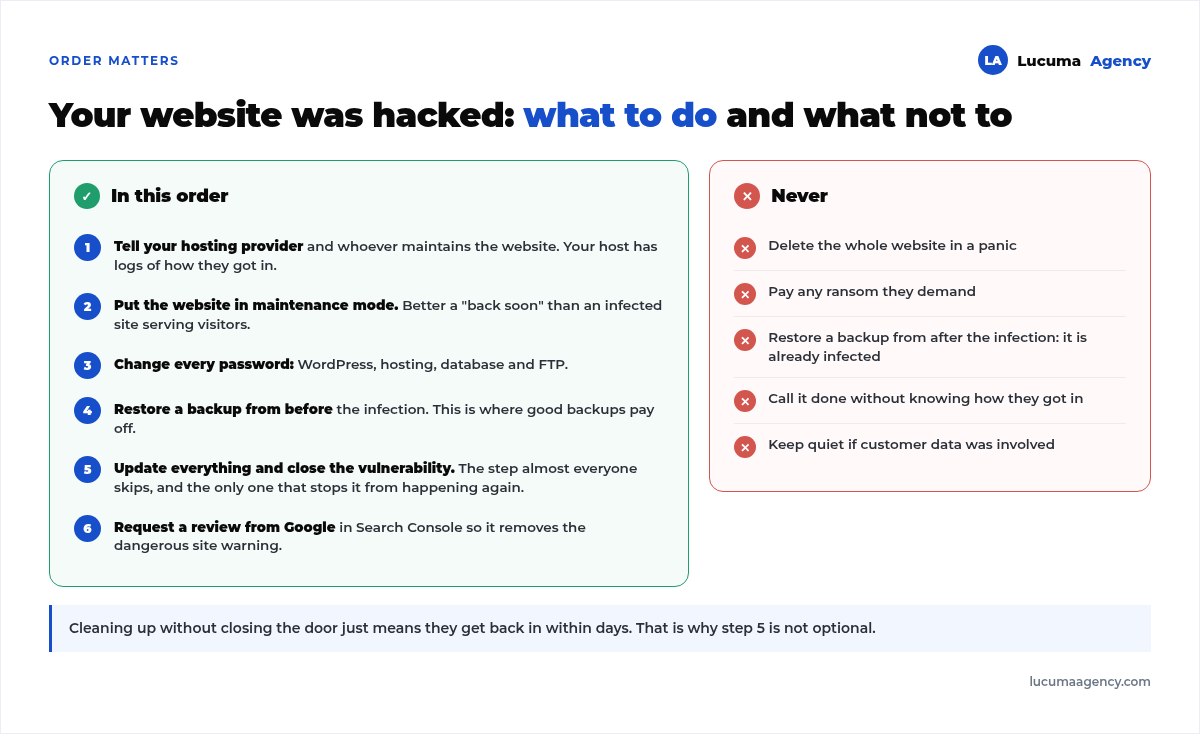
Order matters: cleaning up without closing the door just means they get back in a few days later.
1. Notify your hosting provider and whoever maintains the website. The hosting provider has logs that help figure out how they got in.
2. Put the website in maintenance mode; a “we'll be back soon” page is better than an infected site serving visitors.
3. Change every password: WordPress, hosting, database and FTP.
4. Restore a backup from before the infection. This is where you find out whether you did your backups right.
5. Update everything and close the vulnerability. It's the step almost everyone skips and the only one that keeps it from happening again.
6. Request a review from Google from Search Console so it removes the warning.
And five things you shouldn't do: delete the website in a panic, pay a ransom, restore a backup from after the infection, call it closed without knowing how they got in, or keep quiet about it if customer data was involved.
The key: ongoing maintenance
Security isn't a one-time job: it's an ongoing process of updates, backups and monitoring. A website that's protected today but neglected for six months is exposed again, because new vulnerabilities appear all the time. That's why it goes hand in hand with WordPress maintenance: that's where it stops being a reaction and becomes a habit.
Frequently asked questions about WordPress security
Is WordPress really insecure?
No. It's the most attacked because it's the most used, and that's not the same as being vulnerable. The vast majority of hacked websites were outdated, running pirated plugins or using weak passwords.
How often should I update WordPress and the plugins?
Check once a month and apply security updates right away, always with a backup first.
How often should I back up my website?
Weekly for an informational website, daily for a store that gets orders every day. And always off the same server.
My business is small, why would anyone attack me?
They aren't attacking you: bots look for vulnerable websites, not specific businesses, and they want your server and your domain. Being small doesn't make you invisible.
What should I do if my website has already been hacked?
Don't delete it. Change every password, restore the last clean backup, update everything and only then look into what went wrong. If customer data was stolen, you need to notify those customers. If you manage other people's websites and can't keep up with this, a white-label WordPress freelancer can handle security and maintenance under your brand.
Conclusion
WordPress is secure when it's looked after. Up-to-date software, strong passwords, off-site backups, a security plugin and good hosting cover the vast majority of real risks, and none of the five is complicated. Incidentally, that same hosting is also what matters most for your website's speed.
What's expensive is the alternative: recovering an infected website, cleaning up your reputation on Google and explaining to your customers why their browser says your site is dangerous. Security isn't an expense: it's what prevents that day.
In Lucuma Agency we build and maintain secure WordPress websites as part of our web development service. Want your website protected? Book your free consultation.
Other posts you might like
At almost every real estate developer we work with, the lead takes the same absurd trip: it comes in through the form...
Switching servers is scary for a sensible reason: you rarely do it, and when it goes wrong, it goes wrong in public....
The question always comes the same way: “which payment gateway do you recommend?” And the useful answer doesn't start with a name, because the...
There's a moment, in quite a few projects, when the search for the right plugin becomes the problem. You tried three,...
Almost every online complaints book we audit complies on the outside and fails on the inside. They have the notice,...
The message came in like this: “the complaints book is throwing an error.” The Proba Inmobiliaria website, a page required by law,...
“Top 50 plugins” lists don't help you decide. They help you install fifty plugins. This is ours,...
Almost every business we ask has backups. Almost none has ever restored one. Those two sentences together are...
Almost every hosting conversation starts with price and ends up in the wrong place. The useful question is...
When a business wants to sell outside its country, the conversation almost always starts off wrong: with translation. And the...
Structured data is the piece of code that explains to Google, in a language that leaves no room for interpretation,...
The question comes up in almost every meeting: “if I use AI to write, will Google penalize me?” The short answer...