What is Google Search Console for? The complete guide
If you have a website and want it to show up on Google, there's one tool you can't ignore: Google Search Console. It's free, it comes from Google itself, and it's the only way to know, with real data, how the search engine sees you: which searches you appear for, how many people find you, which pages are indexed and what problems are holding you back.
Search Console tells you what happens before the click. What happens after that, whether the visitor messaged you on WhatsApp or filled out the form, is measured by Analytics, and it has to be set up separately: we cover it in tracking and analytics.
The problem is that a lot of people have it installed and don't use it, or don't even know it exists. It's like having a car dashboard and never looking at it. In this guide we explain, simply and with examples, what Search Console is for, what it looks like inside and how to get the most out of it even if you're not an SEO expert. And if you're still unclear on the big picture, start with our guide to what SEO is and how it works.
What is Google Search Console?
Google Search Console (formerly called "Google Webmaster Tools") is a free Google platform that shows you how your website performs in Google Search. While other tools estimate data, Search Console gives you the information straight from the source: it's Google telling you what's happening with your website on Google.
It's important not to confuse it with Google Analytics. Analytics tells you what people do once they land on your website (where they browse, how long they stay). Search Console tells you what happens before they arrive: how they find you in search. The two complement each other, but they answer different questions.
In short: if Analytics is what happens inside your store, Search Console is what happens at the shop window and out on the street, where people decide whether to walk in or not.
What is Search Console for? A summary
Search Console has lots of features, but they all revolve around five main uses:
See how people find you: which keywords you appear for on Google, how many clicks and impressions you get and what position you're in.
Control which pages are on Google: which ones were indexed correctly and which weren't (and why).
Inspect a specific URL: check whether a particular page is on Google and ask Google to index it.
Submit your sitemap: help Google discover all your pages.
Detect and fix problems: indexing, speed or security errors, or penalties.
Let's go through each one in detail, and along the way, see what the tool looks like inside.
What Search Console looks like inside
When you open Search Console, you'll find a clean dashboard: on the left, a menu with the different reports (Performance, URL Inspection, Indexing, Sitemaps, Experience…); and in the center, whichever report you have open. At the top you can switch between your different properties (your sites) and adjust the date range.
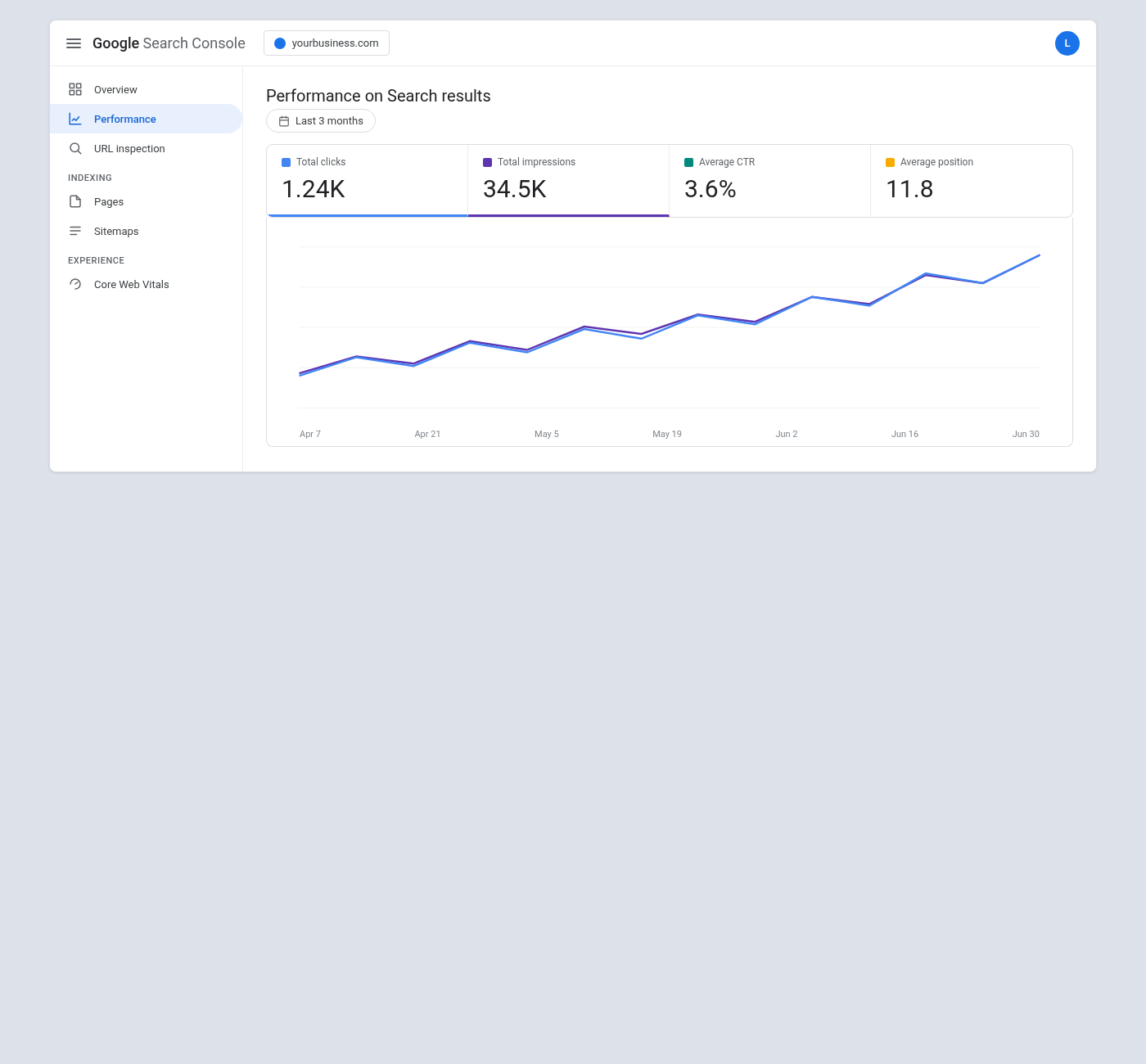
You don't need to touch code or set up anything complicated to read these reports. It's designed so anyone can understand how their site is doing. Now, let's look at what each section tells you.
1. Know how people find you: the Performance report
The Performance report is, for most people, the most useful of all. Here you see exactly how your website appears in Google Search, through four key metrics:
Clicks: how many people clicked through to your website from Google's results. It's the number that comes closest to "visits from search."
Impressions: how many times you appeared in the results, even if nobody clicked. It measures your visibility.
CTR (click-through rate): the percentage of impressions that turned into a click. If you appear a lot but nobody clicks, your CTR is low and something needs improving (usually the title or the description).
Average position: where you rank on average for your searches. The closer to 1, the better.
Together, these four metrics tell a story. For example: lots of impressions + few clicks = you show up, but your result isn't appealing. Few clicks + high position = maybe you're not ranking for the right keywords. And if your position is good but nobody clicks, the culprit is usually the title; we explain it in titles and meta descriptions for 30 service pages.
Queries: the keywords you show up for
Inside Performance is the real gem: the report called Inquiries. Here you see the exact list of words and phrases people use to find you on Google, with their clicks, impressions, CTR and position.
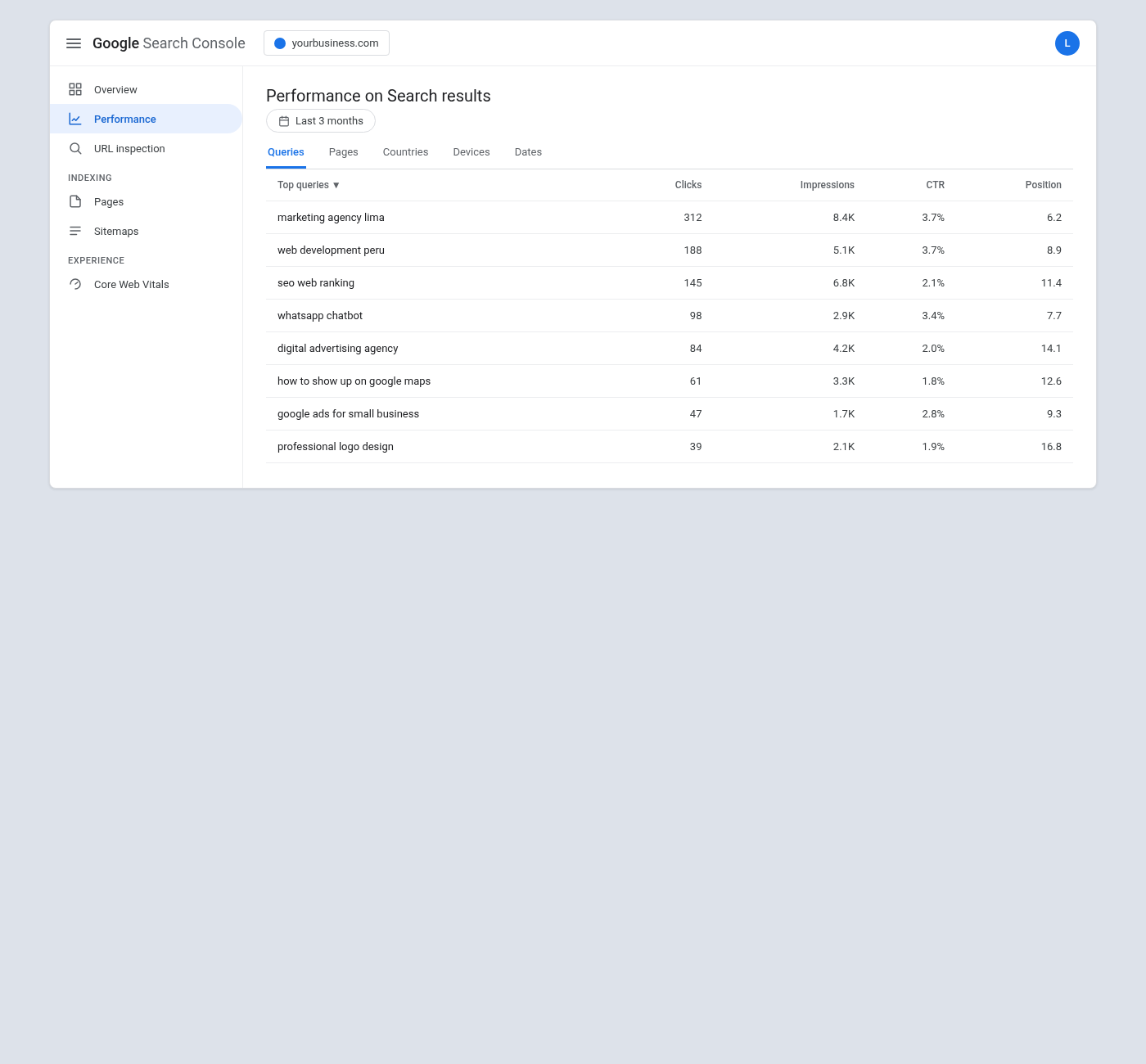
This information is pure gold, because it tells you:
What content to create. If you're in position 12 for “cómo aparecer en google maps” (how to show up on Google Maps) and it gets lots of impressions, there's a clear opportunity: create or improve content on that topic to move up. In fact, the queries report is one of the best sources of ideas for your content strategy.
What to optimize. If a page has a good position but a low CTR, improve its title and meta description so more people click.
What's working. You discover terms you rank for that you didn't even know about, and you can build on them.
All of this is the foundation of a good SEO: not guessing what your customer searches for, but seeing it with real data.
Filter and compare to find opportunities
A big part of the Performance report's power is that you can filter and segment all of that information. You can see performance by page (which URLs bring the most traffic), by country (where people find you), by device (mobile vs. desktop) or by date range.
And you can compare periods. A typical use: you filter by a specific page and see exactly which searches it appears for, so you can optimize it precisely. Another: you compare the last 3 months with the 3 before and spot which queries went up and which dropped, so you can react in time before you lose traffic. These small data comparisons are what separate people who "look at numbers" from people who make decisions with them. If the reports overwhelm you, in how to measure SEO in Search Console without losing your mind we narrow it down to the four that matter.
2. Know which pages are on Google: Indexing
Having 50 pages is useless if Google only knows about 20. For a page to appear in search results, it first has to be indexed (stored in Google's index). The Page indexing report shows you exactly which pages are and which aren't.
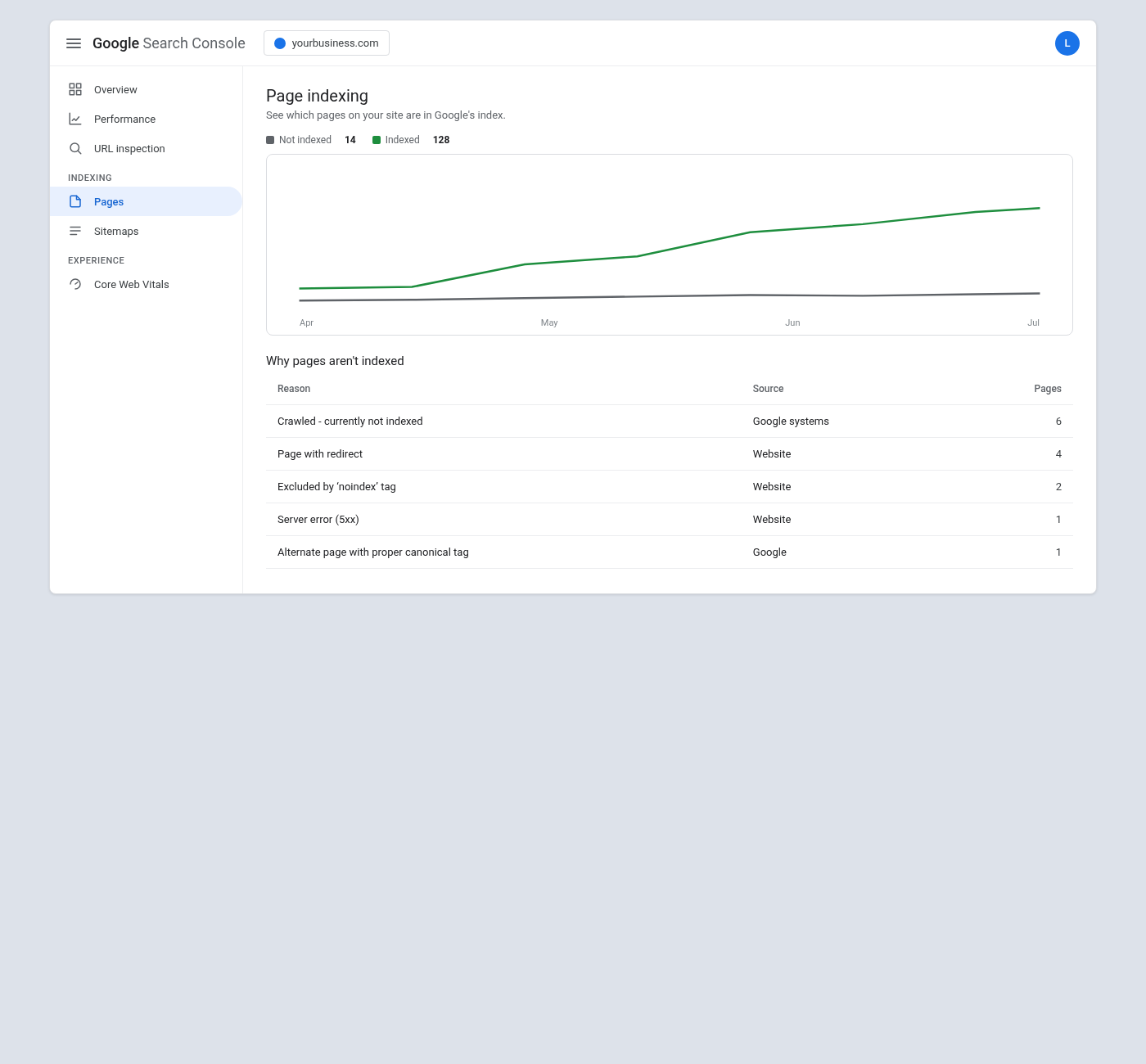
The most valuable thing about this report is that when a page is not indexed, it tells you why. The most common reasons are:
Crawled: currently not indexed. Google saw it but decided not to include it (sometimes because of low quality or thin content).
Page with redirect. It points to another URL, so that one doesn't get indexed.
Excluded by a noindex tag. You explicitly told Google not to index it (sometimes by mistake).
Server error (5xx) or 404 error. Technical problems that block access.
Checking this report lets you spot important pages that aren't showing up and fix the cause. Very often you uncover errors that were costing you traffic without anyone knowing. This is where the technical SEO of your website becomes visible.
3. Inspect a specific URL
Did you publish a new page and want to know if it's on Google yet? Or one that should be showing up and you can't find it? The URL Inspection tool is for exactly that: you paste in a page's address and Search Console tells you its exact status.
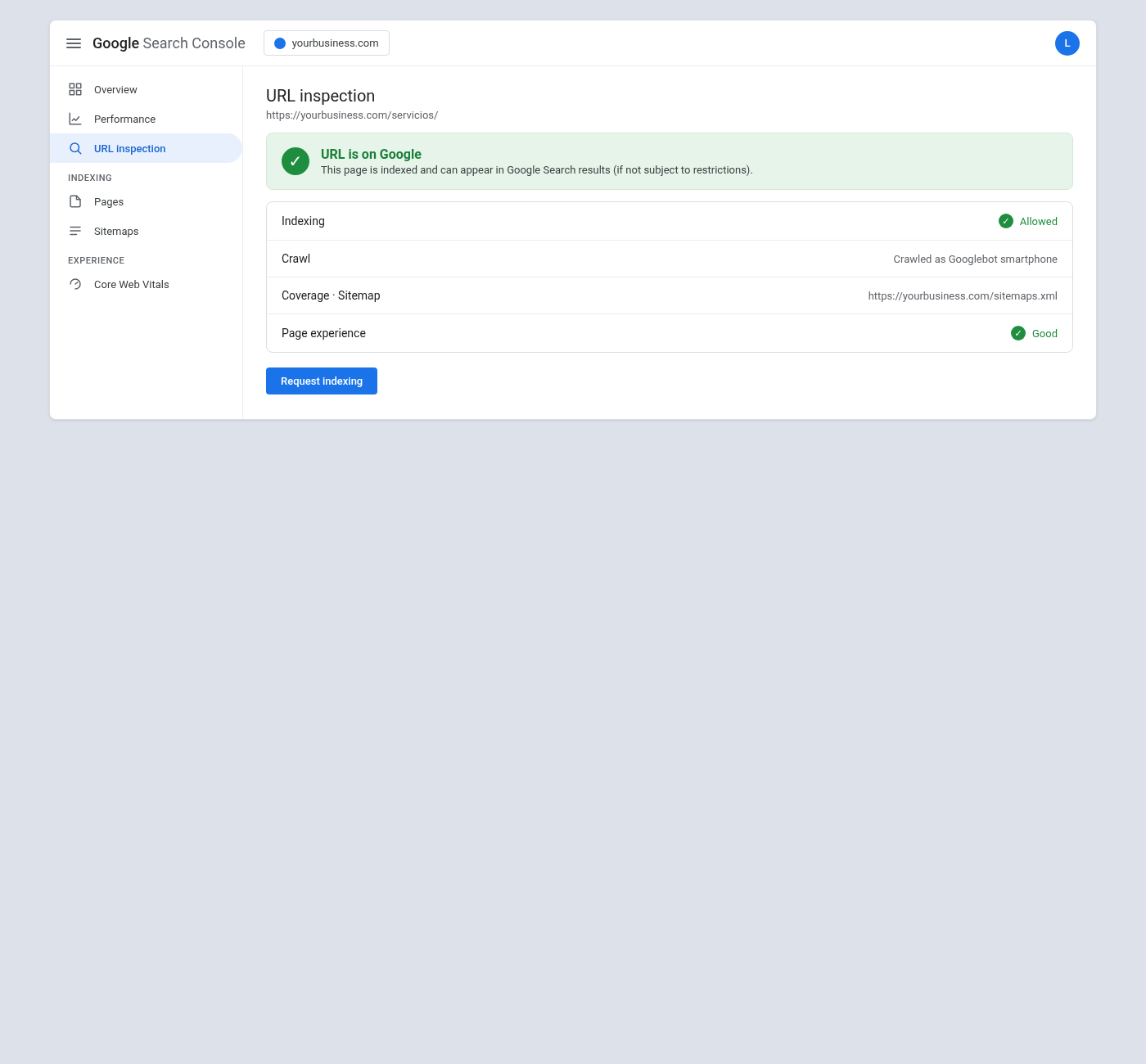
When you inspect a URL, you see whether it's indexed, whether Google can crawl it, which sitemap it belongs to and whether it has any issues. And there's a very handy button: Request indexing. When you publish or update an important page, you can ask Google to crawl it as soon as possible, instead of waiting for it to find the page on its own. It's one of the most appreciated features when you launch new content.
4. Submit your sitemap
A sitemap is a file that lists all the important pages on your website, like an index you hand to Google so it doesn't miss anything. In the Sitemaps section you can submit it and check its status.
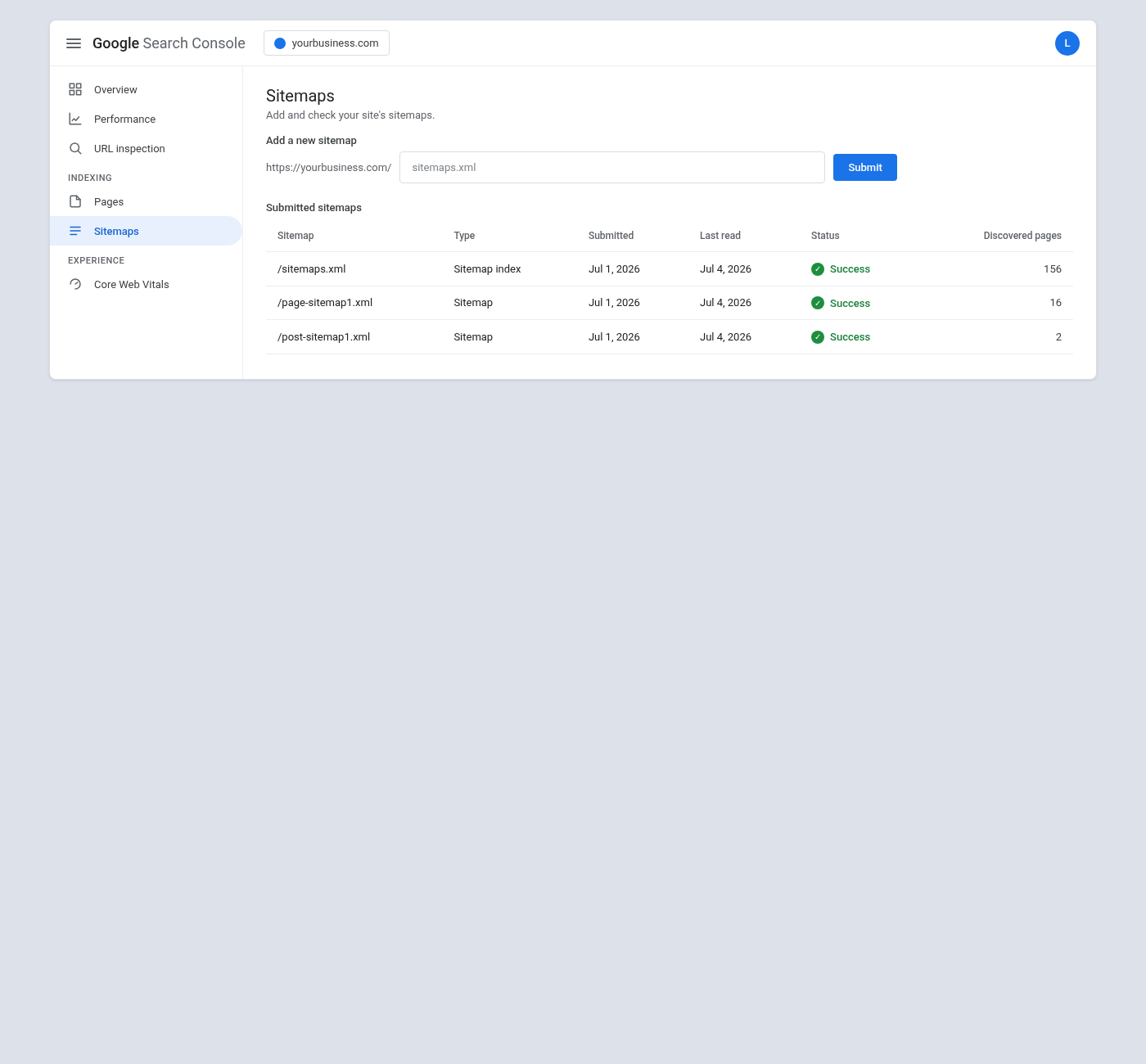
Submitting your sitemap helps Google discover and crawl your pages faster, especially if your website is large or new. Search Console confirms whether the sitemap was read correctly and how many URLs it found. If you see errors here, it's a sign that something in your site's structure needs attention. Most well-built websites on platforms like WordPress generate the sitemap automatically; you only need to submit it once.
5. Detect and fix problems
Search Console doesn't just measure: it also warns you when something is wrong. In practice, it's your SEO alert system. Among the things it monitors:
Page experience and Core Web Vitals. It tells you whether your pages load fast and offer a good experience (something Google uses for rankings). If your website is slow, you'll see it reflected here, and here we explain how to speed up your WordPress website.
Mobile usability. It detects whether your pages look bad on a phone, where most searches happen.
Security issues. It alerts you if your site was hacked or contains malware, so you can act fast.
Manual actions. If Google penalized your website for breaking its guidelines, it notifies you here (and it's the first place to look if your traffic suddenly plummets).
Checking these sections every so often lets you get ahead of problems before they cost you rankings and clients.
How to use Search Console in practice: 4 examples
Theory is fine, but what matters is what you do with this data. Here are four real situations and the decision you'd make in each one:
You show up a lot but nobody clicks. A page has thousands of impressions and very few clicks (low CTR). The problem is almost never the content, but how you present yourself on Google: rewrite the SEO title and meta description to make them more appealing. It's one of the changes that delivers results the fastest.
You're in positions 8 to 15 for a search with volume. You're "at the doorstep" of the first page. That's your best opportunity: improve that page (more useful content, better structure, internal links) to push it into the top spots and multiply its clicks, without starting from scratch.
An important page isn't indexed. You check the indexing report, see the reason (for example, a noindex tag added by mistake) and fix it. Then you use URL inspection to ask Google to reindex it. You recover a page that was invisible.
Your traffic suddenly dropped. Before you panic, you check Search Console: is there a manual action? Did indexing drop? Did a key query fall? If you just rebuilt or moved your website, the first suspect is always the migration. The tool tells you where to look, instead of guessing blindly.
This is exactly the kind of analysis that turns data into results: reading what Search Console shows you and turning it into concrete actions that move the needle.
How to get started: set up and verify Search Console
Using Search Console is free, but first you have to prove to Google that the website is yours. The process is simple:
1. Go to Search Console with your Google account.
2. Add your property. Enter your website's address.
3. Verify that it's yours. Google gives you several options: upload a file, add a tag to your website, verify through your domain or connect it with Google Analytics or Tag Manager if you already use them.
4. Wait a few days. Search Console starts showing data within a few days, and it builds up history over time.
Once it's verified, the tool works on its own: all you have to do is log in and check your reports.
Search Console vs. Google Analytics: they're not the same
It's the most common mix-up, so it's worth making it clear:
Google Search Console answers: how do people find me on Google? (searches, clicks, impressions, indexing). It's your SEO tool.
Google Analytics answers: what do people do once they're on my website? (page views, time, conversions, where the traffic comes from). It's your behavior tool.
Ideally, use both and, even better, connect them. Together they give you the full picture: how people arrive and what they do next. Neither one replaces the other.
Common mistakes and best practices
Installing it and never logging in again. Mistake number one. The data is only useful if you check it (ideally, every month).
Ignoring the indexing report. Lots of websites lose traffic because of pages that don't get indexed, and nobody noticed.
Not using queries to create content. You're sitting on a gold mine of ideas and opportunities.
Not connecting Analytics. You're missing half the story.
Panicking at every warning. Some "not indexed pages" are normal (tags, filters, redirects). Learn to tell what matters from what doesn't.
The best practice is simple: check Search Console regularly, act on what it shows you and use it to guide your strategy with data, not hunches.
Frequently asked questions about Google Search Console
Is Google Search Console free?
Yes, it's 100% free. All you need is a Google account and to verify your website.
Do I need Search Console if I already have Google Analytics?
Yes. They answer different questions and complement each other. Analytics doesn't show you which searches you appear for or your indexing status; Search Console does.
How long does it take to show data?
It starts showing information a few days after you verify your site, and it builds up history over time (up to 16 months of data).
Does Search Console improve my rankings on its own?
Not directly. It's a diagnostic tool: it tells you what's happening and what to improve. Your rankings improve when you act on that information.
Do I need to be tech-savvy to use it?
To read the main reports, no. To fix some technical indexing or speed issues, you may need help from a professional.
Conclusion: your Google dashboard
Google Search Console is, without exaggeration, the most important and least used tool in SEO. It's free, it comes straight from the source and it tells you exactly how Google sees you: why you appear, which pages are indexed and what's holding you back. Not using it is flying blind; using it well is making decisions with real data. And its natural complement is GA4 with properly configured key events: we explain it step by step in how to track your website's conversions with GTM and GA4. Deciding with data, not with the opinion of whoever talks the loudest, is the core of growth marketing, and in search, Search Console is the most honest source you have.
In Lucuma Agency we set up, monitor and interpret Search Console as part of our SEO, to turn that data into more traffic and more clients. Serious about results, close in how we work with you.
Want to know what Google is telling you about your website? Book your free 30-minute consultation and we'll give you an honest diagnosis of your search presence.
Other posts you might like
At almost every real estate developer we work with, the lead takes the same absurd trip: it comes in through the form...
Switching servers is scary for a sensible reason: you rarely do it, and when it goes wrong, it goes wrong in public....
The question always comes the same way: “which payment gateway do you recommend?” And the useful answer doesn't start with a name, because the...
There's a moment, in quite a few projects, when the search for the right plugin becomes the problem. You tried three,...
Almost every online complaints book we audit complies on the outside and fails on the inside. They have the notice,...
The message came in like this: “the complaints book is throwing an error.” The Proba Inmobiliaria website, a page required by law,...
“Top 50 plugins” lists don't help you decide. They help you install fifty plugins. This is ours,...
Almost every business we ask has backups. Almost none has ever restored one. Those two sentences together are...
Almost every hosting conversation starts with price and ends up in the wrong place. The useful question is...
When a business wants to sell outside its country, the conversation almost always starts off wrong: with translation. And the...
Structured data is the piece of code that explains to Google, in a language that leaves no room for interpretation,...
The question comes up in almost every meeting: “if I use AI to write, will Google penalize me?” The short answer...